Configure TeamCity for a Kotlin Multiplatform application
This article explains how to configure TeamCity to build, test, and deploy your KMP applications. TeamCity supports all major VCS providers (GitHub, GitLab, Bitbucket, Azure DevOps, Perforce, and more), enables highly scalable hybrid workflows with both local and cloud agents, and includes powerful features such as multi-node setups for high availability, advanced user management, issue tracker integrations, and an AI assistant.
Grab your free TeamCity trial: choose the Cloud version with JetBrains-hosted agents preconfigured with major build tools and SDKs, or opt for TeamCity On-Premises for maximum control and a free lifetime Professional license.
This tutorial is based on the JetCaster KMP sample.
Create a new project
Every TeamCity workflow starts with a project. Projects own entities such as build configurations and pipelines, which run actual CI/CD routines, store cloud profiles used to spin up cloud agents, share parameters with child objects, and more.
Click the plus button in the side navigation bar to start a new project.
Specify the project name and, optionally, provide a description.
After you click Create, TeamCity will ask you to choose the type of object that will perform the actual building tasks: a build configuration or a pipeline.
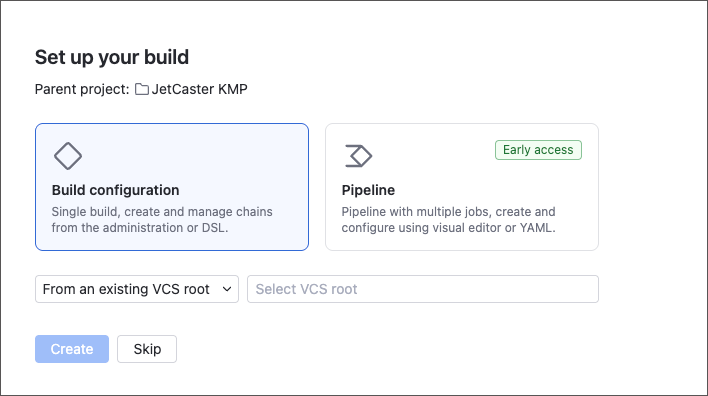
- Build configuration
Supports the full range of TeamCity features, allows you to store configuration settings as Kotlin DSL code, and offers unmatched customization. However, it may require more experience and manual setup.
Learn more: Create and edit build configurations.
- Pipeline
Offers an intuitive design with a visual editor, editable YAML configurations, and easily accessible settings. Pipelines are designed for less experienced users and simpler workflows. Introduced in TeamCity 2025.11, pipelines currently lack some of the functionality available in build configurations.
Learn more: Create and edit pipelines.
For this tutorial, choose pipelines, as they are easier to configure and support all functionality required to build and test our sample project.
Select Connect new repository and choose either GitHub to create a permanent connection to GitHub that you can reuse for future projects, or Any Git URL for a limited connection to a specific repository (the sample JetCaster application or your personal fork).
After TeamCity verifies it can access the required repository, it retrieves the information about branches and asks you to specify basic pipeline behaviors.
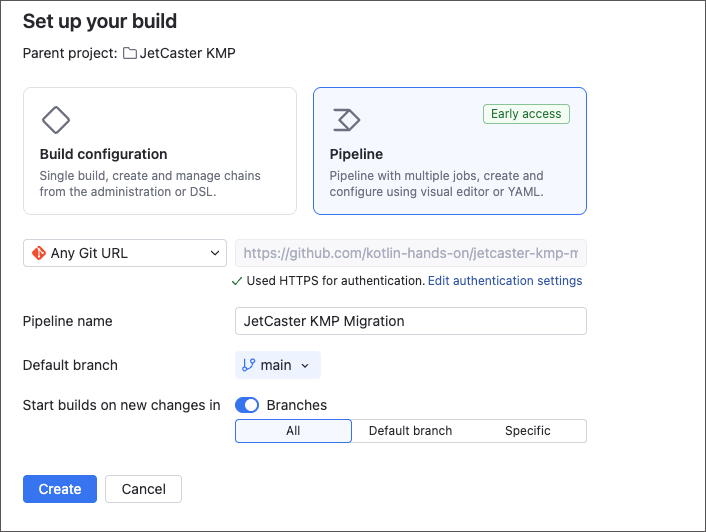
Leave the default settings to allow the pipeline to track all repository branches, use
mainas the default branch, and automatically trigger new runs whenever a change is committed to the repository.
Add pipeline jobs
Once your pipeline is ready, TeamCity will navigate you to its settings page. You can use the toggle in the top left corner to switch between the visual and code editors.
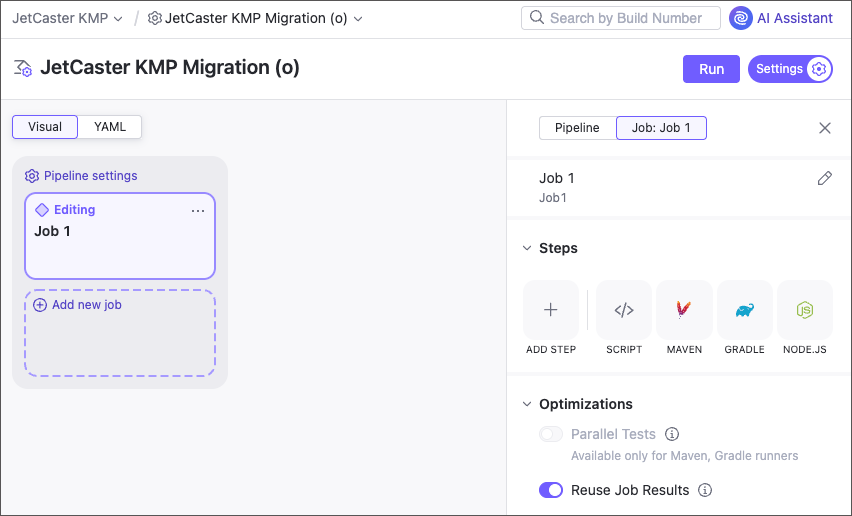
TeamCity pipelines consist of jobs, which are collections of consecutively executed build steps. A build step is the smallest unit of a TeamCity routine that encapsulates a specific set of actions.
In the TeamCity UI, click a job tile to edit its settings, or click the darker region beneath the jobs to modify the global pipeline settings.
Common pipeline settings
This tutorial does not require setting up any global pipeline options. Refer to this article for more information on settings that affect all jobs within a pipeline, such as:
Auto-run pipelines — allows you to configure your pipeline to run automatically whenever a new change is committed to a remote repository (enabled by default), when a pull request is opened for the repository, or on a set schedule.
Repository — allows you to check out and process multiple repositories from different VCS hosting providers.
Integrations — lets you connect external NPM and Docker registries. Note that if you plan to run build steps inside public Docker Hub images, you do not need to configure a corresponding integration unless your pipeline runs frequently enough to exceed Docker Hub's rate limits for anonymous pulls.
Agent settings
Building tasks are processed by build agents installed on bare-metal or cloud machines. These machines must have all the tools required by the given build tasks installed. For example, Job 2 in this pipeline requires the Android SDK, while Job 3 uses Xcode to build an iOS version of the app.
TeamCity Cloud uses JetBrains-hosted agents equipped with a wide range of build tools. For this tutorial, you do not need to connect any additional agents.
If you're using TeamCity On-Premises, you need to make sure that every job can run on at least one agent. Refer to this article for more details: Install and start TeamCity agents.
In this tutorial, the jobs specify agent requirements to guarantee they are assigned only to agents with the necessary tools installed.
Run shared tests
Switch to the YAML pipeline editor and paste the following markup to set up the first job:
This job runs the jvmTest Gradle task using Java 17. It collects all files whose paths match .../build/reports/tests/..., groups them under the test-reports folder, and publishes this folder as an artifact.
You can also enable the Optimizations | Parallel tests job option to split the test suite into smaller batches, processing each batch on a separate build agent. This can significantly reduce the overall run duration but will use more resources. To enable parallel testing, modify the pipeline YAML to include the parallelism setting as shown below:
The Allow reuse optimization option specifies whether TeamCity should skip re-running tasks if no changes have been made to the pipeline configuration or source code.
For additional information, refer to Job settings and Gradle build step.
Build the Android debug package
Modify the pipeline YAML as follows:
The
requirementblock ensures this job will only be assigned to agents that have the Android SDK installed.The
dependenciessection guarantees that this job starts only afterJob1has successfully finished.
Build the iOS simulator application
For the final step, add the following markup to the pipeline YAML:
Unlike the first two jobs, Build iOS uses the universal command-line build step, which allows you to run commands or interact with any tool installed on the agent machine.
The dependencies section specifies a dependency on Job1, meaning that both Build Android and Build iOS jobs can run in parallel but will start only after the testing routine from Job1 completes.
Run the pipeline
Click Save and Run in the top-right corner to start your workflow. Once a job finishes, any artifacts it publishes will be available in the Artifacts tab next to the build log.
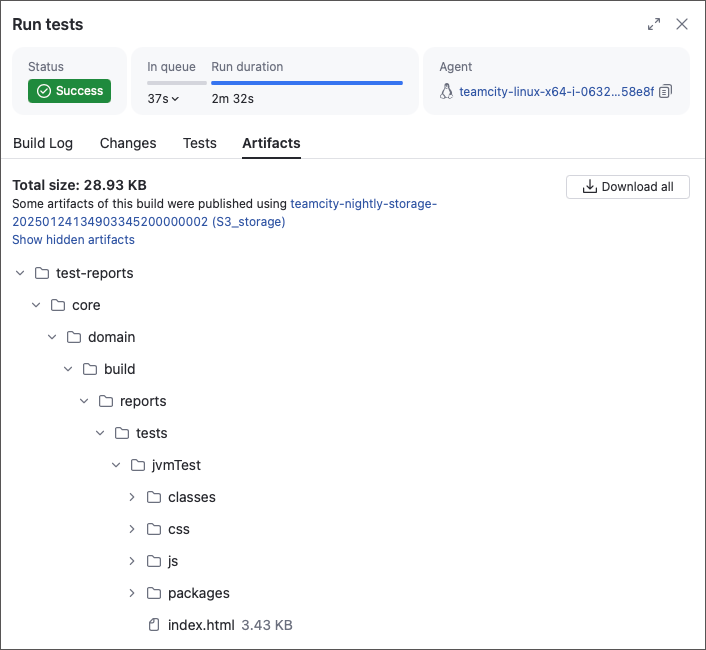
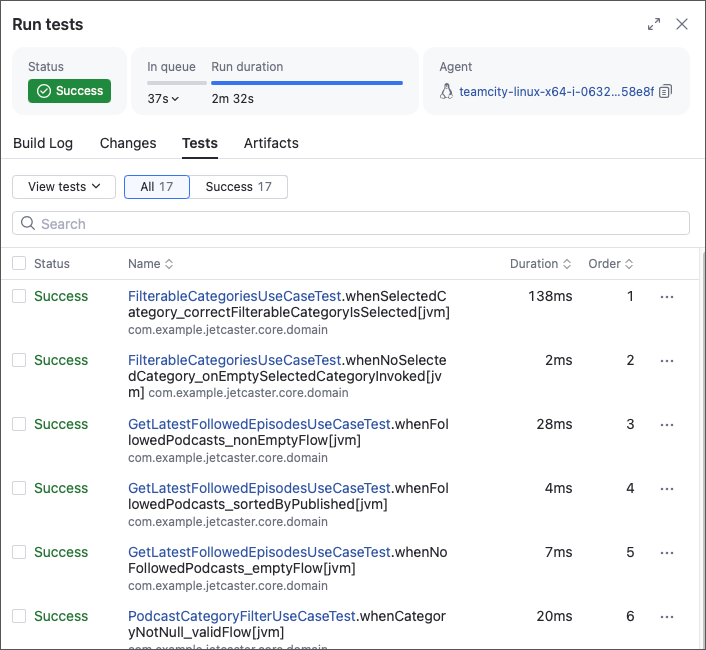
Job1 will also display a Tests tab, allowing you to inspect the test results.
What's next
You can continue modifying this sample to gain even more benefits:
Add a pipeline using a VCS connection
When adding a new pipeline to a project, choose GitHub instead of Any Git URL. This approach not only allows you to skip configuring VCS access for future GitHub-based projects, but also unlocks additional pipeline features:
TeamCity can post run statuses (successful, failed, or running) directly to GitHub.
The On new changes trigger and Repository entries will include a Pull requests toggle, that allows you to track and build changes that were not yet committed to a stable branch.
Explore advanced build configurations
Switch from pipelines to build configurations for access to advanced features:
Use build chains and composite configurations to run specific workflow portions. For example, run Test → Build iOS without triggering Build Android, or run the testing configuration alone.
Enjoy the full range of JetBrains-crafted build steps, community recipes, and unbundled steps like GitHub releases.
Deploy your agents in a Kubernetes cluster, or use it as an external executor.
Set up integrations with issue trackers and secret vaults.