Compose Hot Reload
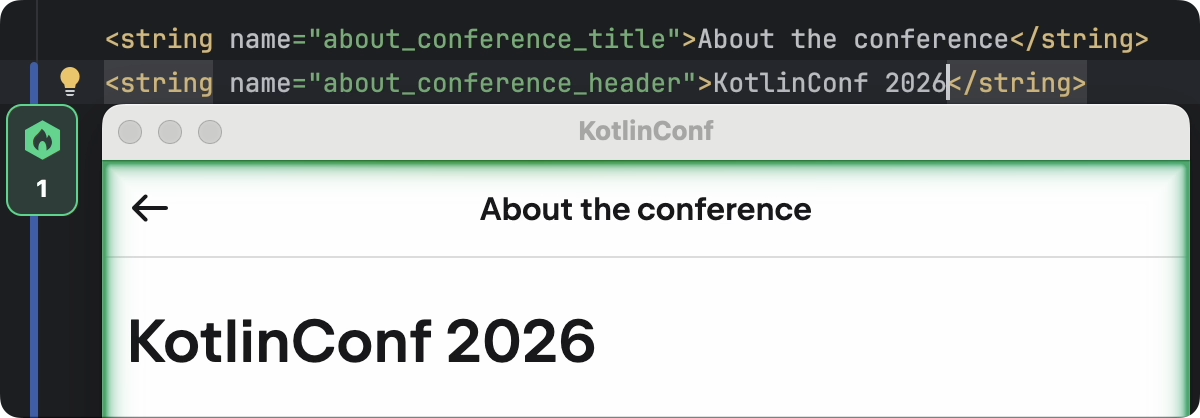
Compose Hot Reload helps you visualize and experiment with UI changes while working on a Compose Multiplatform project. Unlike standard Compose previews, which are helpful for viewing isolated components with test data, Compose Hot Reload directly applies your code changes to the running application.
The bundled Compose Hot Reload Gradle plugin requires Kotlin 2.1.20+ and a JVM target compatible with Java 21 or earlier. To use the full functionality of Compose Hot Reload, we recommend installing the Kotlin Multiplatform IDE plugin, available for IntelliJ IDEA starting with version 2025.2.2 and Android Studio starting with Otter 2025.2.1.
While we explore adding support for other targets, you can already use the desktop app as your sandbox to quickly experiment with UI changes in common code without interrupting your flow.
Add Compose Hot Reload to your project
Compose Hot Reload can be added in two ways, by:
From scratch
This section walks you through the steps to create a multiplatform project with a desktop target in IntelliJ IDEA and Android Studio. When your project is created, Compose Hot Reload is automatically added.
In the quickstart, complete the instructions to set up your environment for Kotlin Multiplatform development.
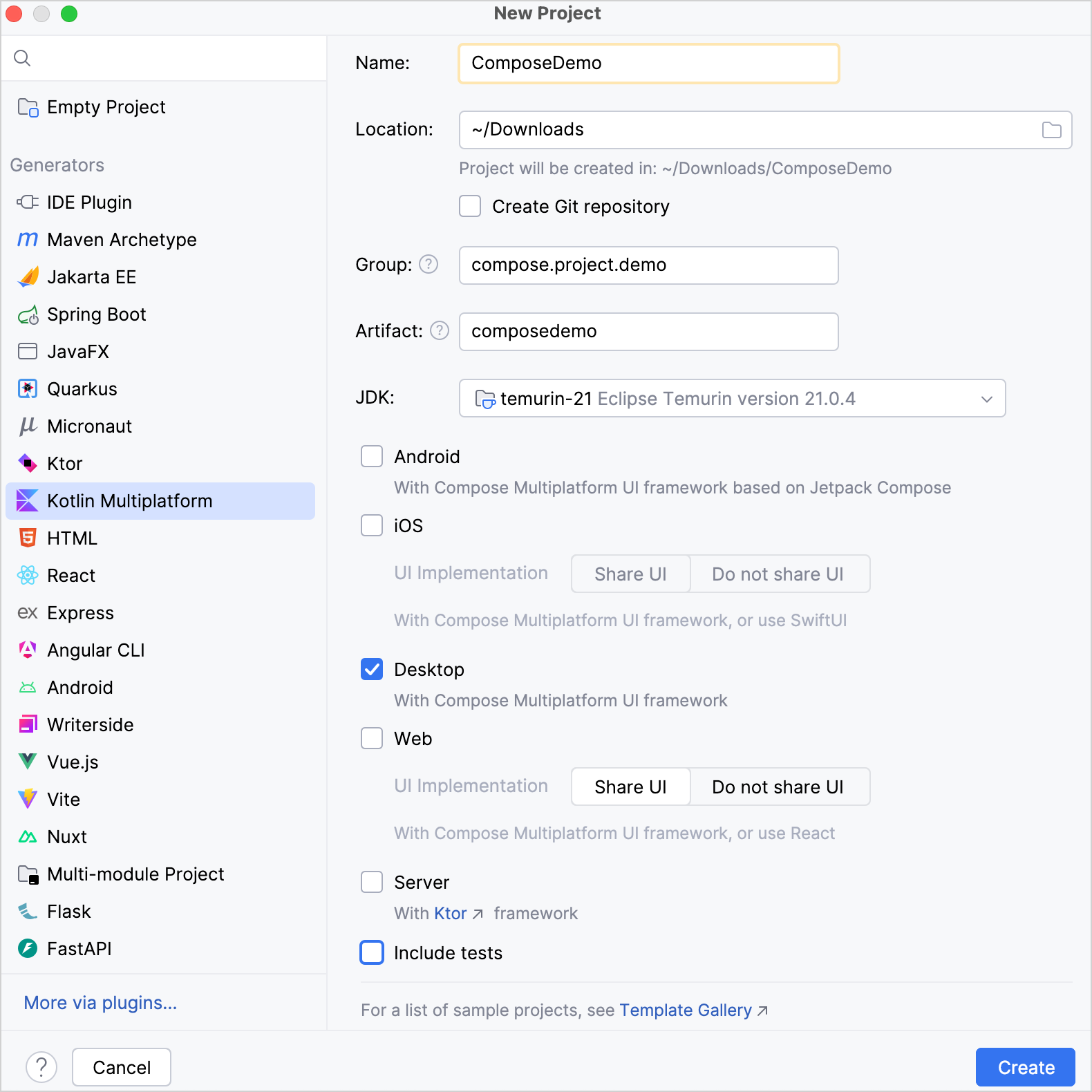
In the IDE, select File | New | Project.
In the panel on the left, select Kotlin Multiplatform.
Specify the Name, Group, and Artifact fields in the New Project window.
Select the Desktop target and click Create.
To an existing project
Starting with Compose Multiplatform 1.10.0, the Compose Hot Reload plugin is bundled and enabled by default for all projects that include a desktop target.
If your project already includes a desktop target, you can upgrade to Compose Multiplatform version 1.10.0 or later and enjoy Compose Hot Reload functionality out-of-the-box.
While it is enabled by default, you can still explicitly declare the Compose Hot Reload plugin to use a specific older version.
Earlier versions of Compose Multiplatform
For multiplatform projects using a Compose Multiplatform version earlier than 1.10.0, you must have a desktop target configured and then explicitly add the Compose Hot Reload plugin. The steps refer to the project from the Create an app with shared logic and UI tutorial as a reference.
Introduce the desktop target: create the
desktopAppdirectory, define amain()function, and provide theactualimplementations. If your project already includes a desktop target, you can skip this step. For reference, see the sample in Add a JVM entry point.Update the version catalog with the latest version of Compose Hot Reload (see Releases). In
gradle/libs.versions.toml, add the following code:composeHotReload = { id = "org.jetbrains.compose.hot-reload", version.ref = "composeHotReload"}In the
build.gradle.ktsof your parent project (ComposeDemo/build.gradle.kts), add the following code to yourplugins {}block:plugins { alias(libs.plugins.composeHotReload) apply false }This prevents the Compose Hot Reload plugin from being loaded multiple times in each of your subprojects.
In the
build.gradle.ktsof the subproject containing your multiplatform application (ComposeDemo/sharedUI/build.gradle.kts), add the following code to yourplugins {}block:plugins { alias(libs.plugins.composeHotReload) }Your project must run on JetBrains Runtime (JBR), an OpenJDK fork that supports enhanced class redefinition. Compose Hot Reload can automatically provision a compatible JBR for your project.
To allow automatic provisioning, add the following Gradle plugin to your
settings.gradle.ktsfile:plugins { id("org.gradle.toolchains.foojay-resolver-convention") version "1.2.0" }Click the Sync Gradle Changes button to synchronize Gradle files:

Use Compose Hot Reload
In the
desktopAppsource set, open themain.ktfile and update themain()function:fun main() = application { Window( onCloseRequest = ::exitApplication, alwaysOnTop = true, title = "composedemo", ) { App() } }By setting the
alwaysOnTopvariable totrue, the generated desktop app stays on top of all your windows, making it easier to edit your code and see changes live.Open the
App.ktfile and update theButtoncomposable:Button(onClick = { showContent = !showContent }) { Column { Text(Greeting().greet()) } }Now, the text for the button is controlled by the
greet()function.Open the
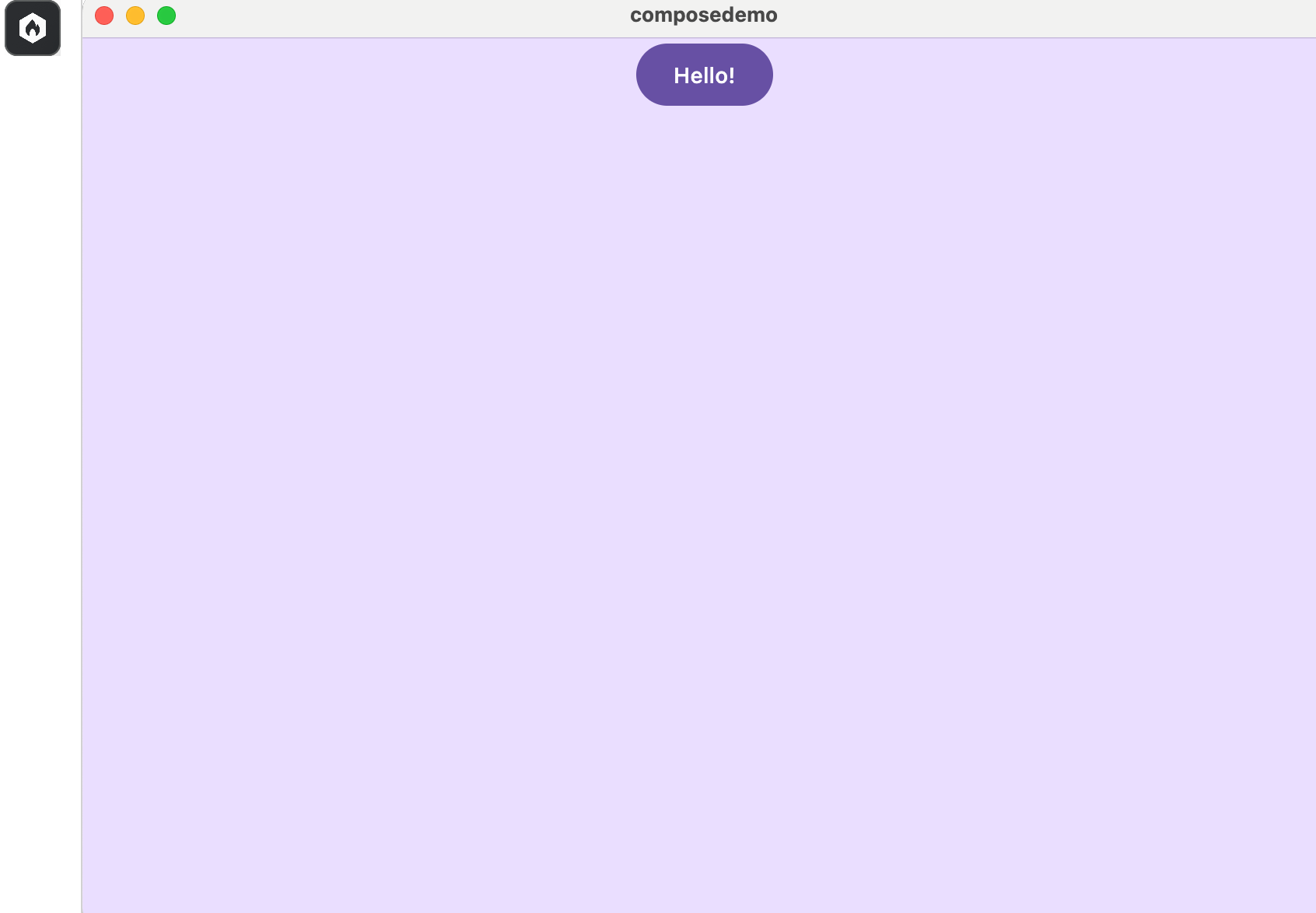
Greeting.ktfile and update thegreet()function:fun greet(): String { return "Hello!" }Open the
main.ktfile and click the Run icon in the gutter. Select Run 'desktopApp' with Compose Hot Reload.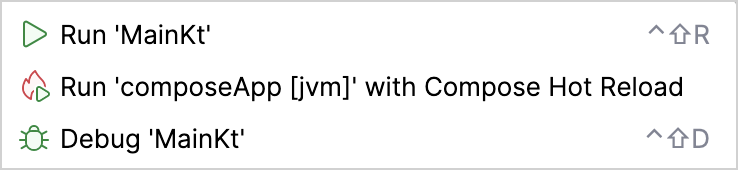
Update the string returned from the
greet()function, then save all files (⌘ S/Ctrl+S) to see the desktop app update automatically.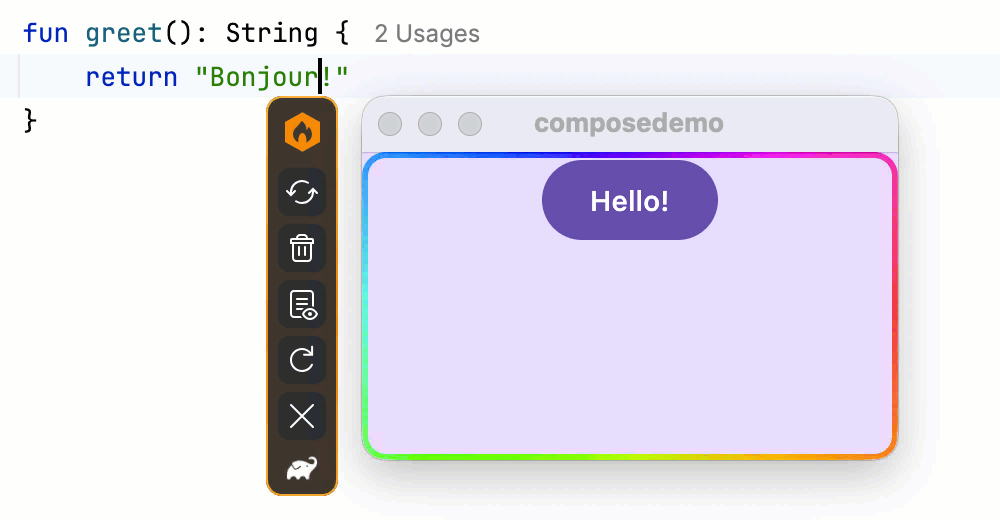
Alternatively, trigger the reload explicitly by pressing the assigned shortcut key or clicking the Reload UI button. You can modify the trigger behavior on the Settings | Tools | Compose Hot Reload page.
Congratulations! You've seen Compose Hot Reload in action. Now you can experiment with changing text, images, formatting, UI structure, and more, without having to restart the desktop run configuration after every change.
MCP server for AI agents
Starting with Compose Multiplatform 1.12.0, Compose Hot Reload includes a built-in Model Context Protocol (MCP) server. The MCP server lets AI coding agents interact with your running Compose application: trigger Compose Hot Reload, see the rendered UI, inspect the semantic structure, simulate user input, and read runtime logs. For applications with multiple windows, the agent can list windows and target any of them.
This closes the feedback loop for AI agents when editing Compose code. Instead of relying on you to manually check the result after every edit, the agent can iterate on your code autonomously and verify each change.
Connect an AI agent
To connect an AI agent, configure the MCP client to run the hotMcpServer Gradle task. For example, in .mcp.json:
Gradle searches for tasks across all subprojects and matches the short name hotMcpServer to target-specific variants such as hotMcpServerJvm or hotMcpServerDesktop.
If your module defines multiple JVM targets, specify the fully qualified task name to avoid ambiguity: :<module>:hotMcpServer<Target>, for example :app:hotMcpServerDesktop or :composeApp:hotMcpServerJvm.
Available MCP tools
The MCP server exposes a range of tools the agent can invoke, including:
reload— recompiles the project and hot-reloads the changed classes.take_screenshot— captures the current state of an application window.get_semantic_tree— returns the Compose semantic tree, so the agent can understand the UI structure.get_logs— returns recent log output from the running application, including runtime exceptions.click,type_text, andscroll— simulate user input to test interactive flows.
For the full list of MCP tools and their parameters, see the Compose Hot Reload README.
Get help
If you encounter any problems using Compose Hot Reload, let us know by creating a GitHub issue.