Gradle
To generate documentation for a Gradle-based project, you can use the Gradle plugin for Dokka.
The Dokka Gradle plugin (DGP) comes with basic autoconfiguration for your project, includes Gradle tasks for generating documentation, and provides configuration options to customize the output.
You can play around with Dokka and explore how to configure it for various projects in our Gradle example projects.
Supported versions
Ensure that your project meets the minimum version requirements:
Tool | Version |
|---|---|
7.6 or higher | |
7.0 or higher | |
1.9 or higher |
Apply Dokka
The recommended way of applying the Gradle plugin for Dokka is with the plugins block. Add it in the plugins {} block of your project’s build.gradle.kts file:
When documenting multi-project builds, you need to apply the plugin explicitly to every subproject you want to document. You can configure Dokka directly in each subproject or share Dokka configuration across subprojects using a convention plugin. For more information, see how to configure single-project and multi-project builds.
Enable build cache and configuration cache
DGP supports Gradle build cache and configuration cache, improving build performance.
To enable build cache, follow instructions in the Gradle build cache documentation.
To enable configuration cache, follow instructions in the Gradle configuration cache documentation.
Generate documentation
The Dokka Gradle plugin comes with HTML and Javadoc output formats built in.
Use the following Gradle task to generate documentation:
The key behavior of the dokkaGenerate Gradle task is:
This task generates documentation for both single and multi-project builds.
By default, the documentation output format is HTML. You can also generate Javadoc or both HTML and Javadoc formats by adding the appropriate plugins.
The generated documentation is automatically placed in the
build/dokka/htmldirectory for both single and multi-project builds. You can change the location (outputDirectory).
Configure documentation output format
You can choose to generate the API documentation in HTML, Javadoc, or both formats at the same time:
Place the corresponding plugin
idin theplugins {}block of your project'sbuild.gradle.ktsfile:plugins { // Generates HTML documentation id("org.jetbrains.dokka") version "2.2.0" // Generates Javadoc documentation id("org.jetbrains.dokka-javadoc") version "2.2.0" // Keeping both plugin IDs generates both formats }Run the corresponding Gradle task.
Here is a list of the plugin
idand Gradle task that correspond to each format:HTML
Javadoc
Both
Plugin
idid("org.jetbrains.dokka")id("org.jetbrains.dokka-javadoc")Use both HTML and Javadoc plugins
Gradle task
./gradlew :dokkaGeneratePublicationHtml./gradlew :dokkaGeneratePublicationJavadoc./gradlew :dokkaGenerate
If you're using IntelliJ IDEA, you may see the dokkaGenerateHtml Gradle task. This task is simply an alias of dokkaGeneratePublicationHtml. Both tasks perform exactly the same operation.
Aggregate documentation output in multi-project builds
Dokka can aggregate documentation from multiple subprojects into a single output or publication.
You have to apply the Dokka plugin to all documentable subprojects before aggregating the documentation.
To aggregate documentation from multiple subprojects, add the dependencies {} block in the build.gradle.kts file of the root project:
Given a project with the following structure:
The generated documentation is aggregated as follows:
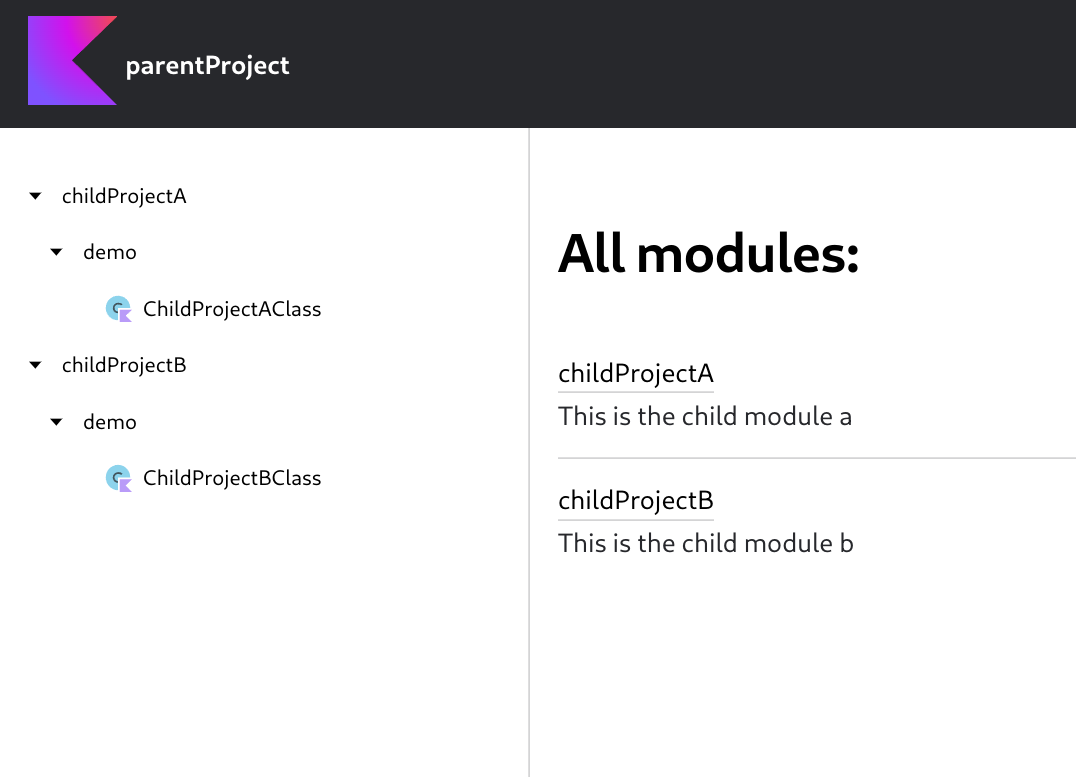
See our multi-project example for more details.
Directory of aggregated documentation
When DGP aggregates subprojects, each subproject has its own subdirectory within the aggregated documentation. DGP ensures each subproject has a unique directory by retaining the full project structure.
For example, given a project with an aggregation in :turbo-lib and a nested subproject :turbo-lib:maths, the generated documentation is placed under:
You can revert this behavior by manually specifying the subproject directory. Add the following configuration to the build.gradle.kts file of each subproject:
This configuration changes the generated documentation for the :turbo-lib:maths module to be generated into turbo-lib/build/dokka/html/maths/.
Build javadoc.jar
If you want to publish your library to a repository, you may need to provide a javadoc.jar file that contains API reference documentation of your library.
For example, if you want to publish to Maven Central, you must supply a javadoc.jar alongside your project. However, not all repositories have that rule.
The Gradle plugin for Dokka does not provide any way to do this out of the box, but it can be achieved with custom Gradle tasks. One for generating documentation in HTML format and another one for Javadoc format:
Configuration examples
Depending on the type of project that you have, the way you apply and configure Dokka differs slightly. However, configuration options themselves are the same, regardless of the type of your project.
For simple and flat projects with a single build.gradle.kts or build.gradle file found in the root of your project, see Single-project configuration.
For a more complex build with subprojects and multiple nested build.gradle.kts or build.gradle files, see Multi-project configuration.
Single-project configuration
Single-project builds usually have only one build.gradle.kts or build.gradle file in the root of the project. They can be either single-platform or multiplatform and typically have the following structure:
Single platform:
Multiplatform:
Single platform:
Multiplatform:
Apply the Dokka Gradle plugin in your root build.gradle.kts file and configure it using the top-level dokka {} DSL:
Inside ./build.gradle:
This configuration applies Dokka to your project, sets up the documentation output directory, and defines the main source set. You can extend it further by adding custom assets, visibility filters, or plugin configurations within the same dokka {} block. For more information, see Configuration options.
Multi-project configuration
Multi-project builds usually contain several nested build.gradle.kts files and have a structure similar to the following:
Single and multi-project documentation share the same configuration model using the top-level dokka {} DSL.
There are two ways of configuring Dokka in multi-project builds:
Shared configuration via a convention plugin (preferred): defining a convention plugin and applying it to all subprojects. This centralizes your Dokka settings.
Manual configuration: applying the Dokka plugin and repeating the same
dokka {}block in each subproject. You don't need convention plugins.
After configuring your subprojects, you can aggregate the documentation from multiple subprojects into a single output. For more information, see Aggregate documentation output in multi-project-builds.
Shared configuration via a convention plugin
Follow the next steps to set up a convention plugin and apply it to your subprojects.
Set up the buildSrc directory
In your project root, create a
buildSrcdirectory containing two files:settings.gradle.ktsbuild.gradle.kts
In the
buildSrc/settings.gradle.ktsfile, add the following snippet:rootProject.name = "buildSrc"In the
buildSrc/build.gradle.ktsfile, add the following snippet:plugins { `kotlin-dsl` } repositories { mavenCentral() gradlePluginPortal() } dependencies { implementation("org.jetbrains.dokka:dokka-gradle-plugin:2.2.0") }
Set up the Dokka convention plugin
After setting up the buildSrc directory, set up the Dokka convention plugin:
Create a
buildSrc/src/main/kotlin/dokka-convention.gradle.ktsfile to host the convention plugin.In the
dokka-convention.gradle.ktsfile, add the following snippet:plugins { id("org.jetbrains.dokka") } dokka { // The shared configuration goes here }You need to add the shared Dokka configuration common to all subprojects within the
dokka {}block. Also, you don't need to specify a Dokka version. The version is already set in thebuildSrc/build.gradle.ktsfile.
Apply the convention plugin to your subprojects
Apply the Dokka convention plugin across your subprojects by adding it to each subproject's build.gradle.kts file:
Manual configuration
If your project doesn't use convention plugins, you can reuse the same Dokka configuration pattern by manually copying the same dokka {} block into each subproject:
Apply the Dokka plugin in every subproject's
build.gradle.ktsfile:plugins { id("org.jetbrains.dokka") version "2.2.0" }Declare the shared configuration in each subproject's
dokka {}block. Because there's no convention plugin centralizing the configuration, you duplicate any configuration you want across subprojects. For more information, see configuration options.
Parent project configuration
In multi-project builds, you can configure settings that apply to the entire documentation in the root project. This can include defining the output format, output directory, documentation subproject name, aggregating documentation from all subprojects, and other configuration options:
Additionally, each subproject can have its own dokka {} block if it needs custom configuration. In the following example, the subproject applies the Dokka plugin, sets a custom subproject name, and includes additional documentation from its README.md file: